What are Tasks?
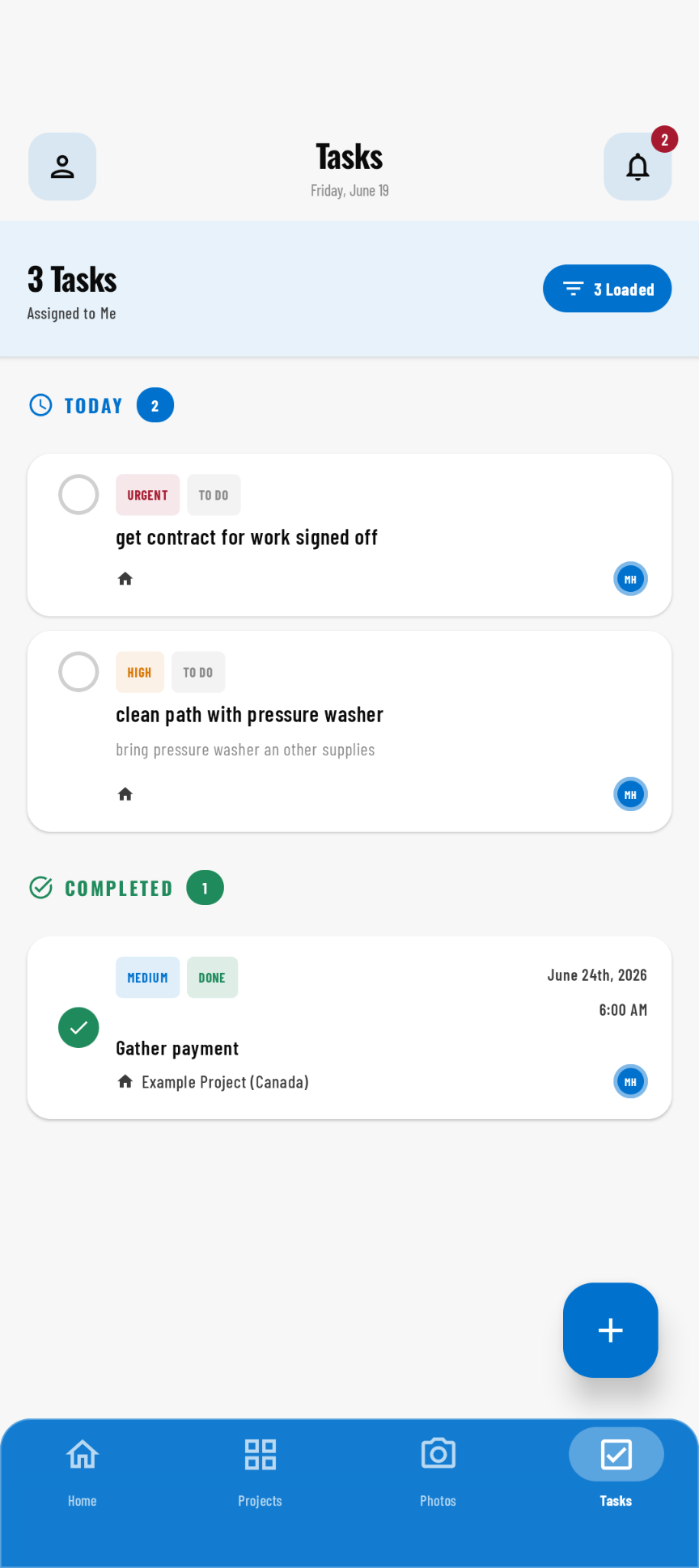
Tasks keep your whole crew aligned, whether they are in the office or on the jobsite.
Tasks are one of your sources of truth for where a project stands. They keep your whole crew aligned, whether they are in the office or on the jobsite. Keeping everyone on the same page is vital for a smooth project. Tasks help keep the crew aligned, and you can include as much detail as you want. Tasks can be linked to every layer of a project, from the project itself to specific photos or a document that contains the scope of work. Tasks become your crew’s best assistant once you know how to use them like a Pro.
Where Tasks Can Be Created
Tasks can be created for the following parts of your project:
- The project itself
- Specific photos
- Documents
How to Create Tasks
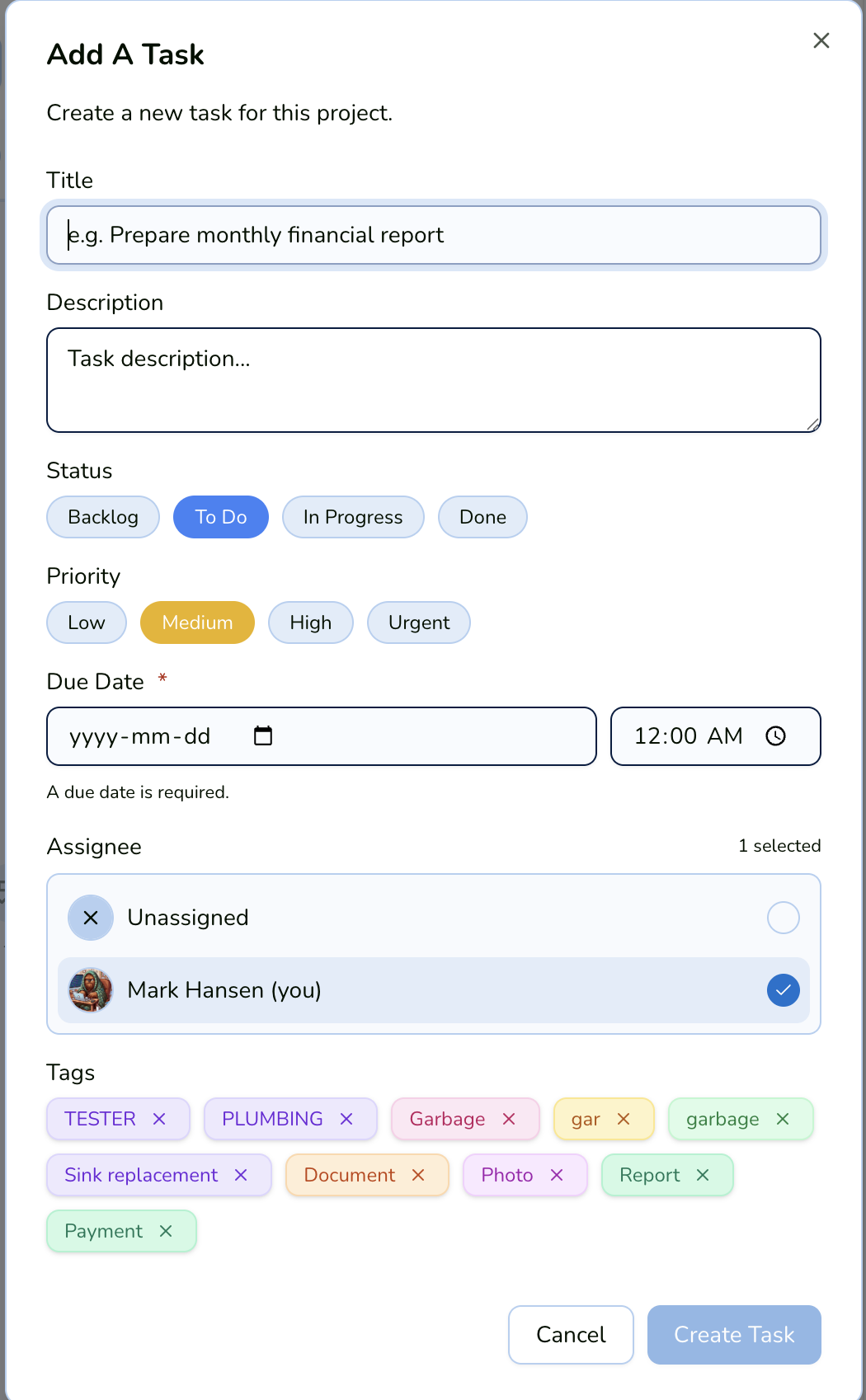
Creating a task is simple. On the right side of your screen, where you see all of the information about the project, photo, or document, select the Add a Task button. A pop-up will appear where you can create the task, add a name, and add a description.
For tasks tied to a specific document or photo, open the menu for the document or photo and follow the same steps. At the bottom of the pop-up, you will see the photo or document you are adding the task to.
Linking Tasks & Multi-Select
If you multi-select photos, you can also create a task for them. At the bottom of the page, select Actions, then choose Create a task. If you already have a task you want to link photos to, select Assign to task.
Tasks can be used for any part of the project you want to organize, so you never lose track of the smallest details on your job sites.
Tags & Assignees: Next-Level Organization
For even more organization, use tags and assignees to make tasks easy to find and clearly owned. Tags let you group work by things like trade framing, electrical, location, or inspection status—so you can filter and sort your task list in seconds. Assigning a task to a user makes it clear who’s responsible, keeps accountability tight, and helps everyone see what they need to focus on next. Combined with linking tasks to the right project, photo, or document, tags and assignees turn your task list into a quick, searchable dashboard for the whole crew.